Click the image above to watch the YouTube video for this devlog.
Hello everyone!
Last time, we introduced Pard Engine Studio and its core features: Workspaces and Editors. Workspaces are windows that allow users to handle multiple editors and organize them, potentially across a multi-monitor setup. Each editor is represented by a tab inside a workspace and allows editing and managing specific resources like Scenes, Materials, GUI Controls, etc.
That's okay, but how can a user effectively edit the resource? So far, we have simply an empty gray area with nothing inside it. We cannot do much. In this case, we need to introduce further elements that allow users to edit the various parts of a resource interactively. For that reason, we need to introduce the so-called editor panels. Today, we will see how an editor manages its panels, including how users rearrange them, how docking behaves, and how layouts are saved between sessions.
Editor panels
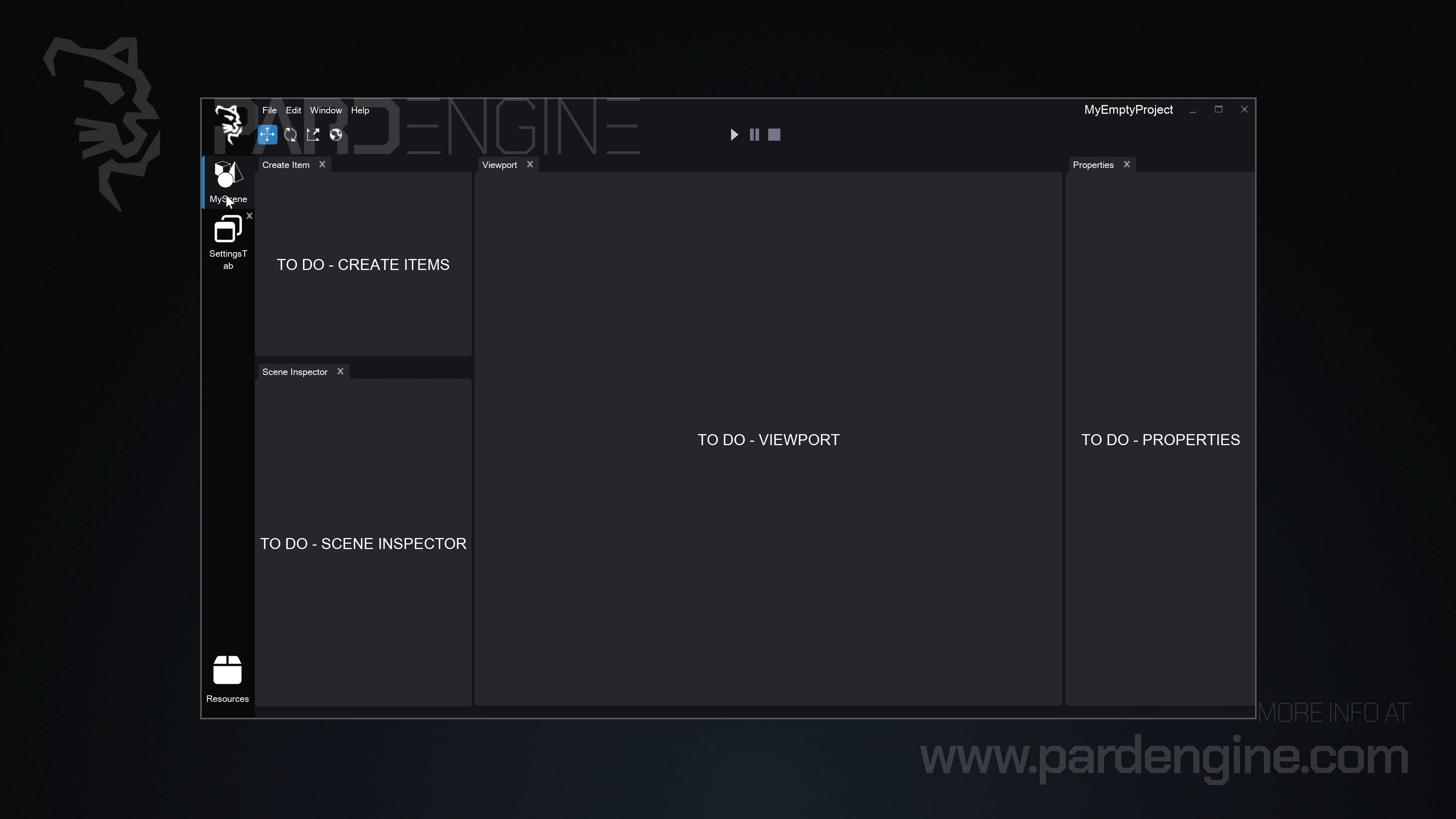
Figure 1: Scene editor with its panels docked inside its dockable area.
An editor panel is represented graphically by a tab that serves a specific purpose inside the editor. In the Scene Editor, for example, we could have the Scene Inspector panel, which shows a tree view of the elements composing a scene; the Viewport panel, which shows a 2D/3D visualization of the scene; the Properties panel, which allows inspecting and editing the properties of a specific selected object; and so on.
Each editor can be composed of a series of panels.
These editor panels can be placed all together inside the main area of the editor, which we can call the dockable area, like in Figure 1.
Docking
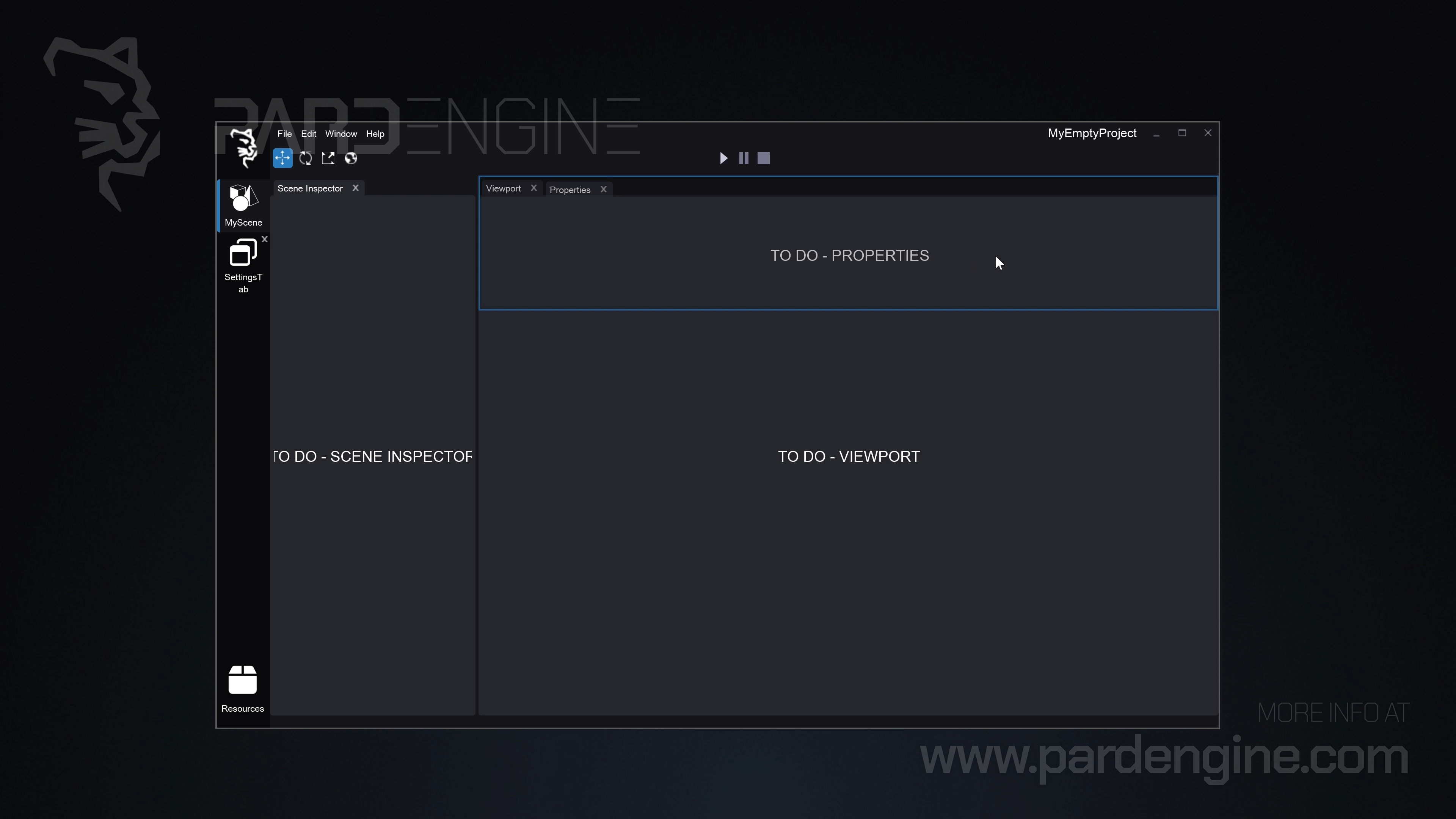
Figure 2: Docking Properties panel into the scene editor.
An editor allows the user to dock a panel side by side with other panels. By dragging the tab label of a panel outside the tab container, the panel is undocked, and a temporary window hosting this panel is generated, allowing the user to move the panel wherever they want.
From there, the user can move the temporary window across the various panels already docked inside the editor, like in Figure 2. In this case, the user can choose to dock the panel in five possible positions: on top, on left, on right, or on bottom of a specific panel, or add it as a tab inside the tab container, as shown in the video on top. When the user drops the temporary window, the editor panel is docked, updating the layout.
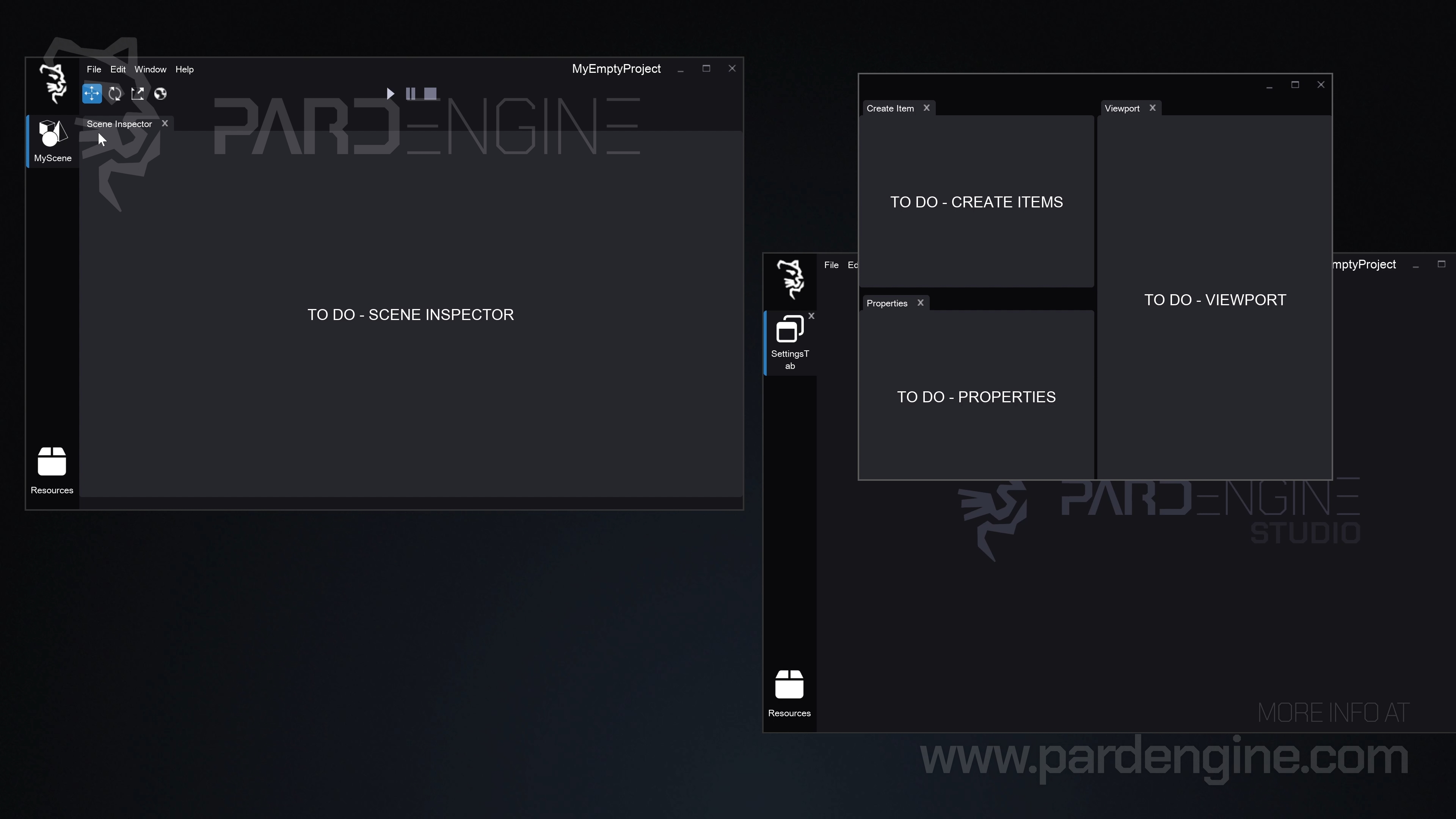
Figure 3: Split editor area of scene editor.
Alternatively, the user can simply drop the temporary host window in another area of the screen, outside the editor, allowing the generation of an editor host window.
The editor host window, like in Figure 3, is nothing more than a split area of its main editor in which the user can place their panels.
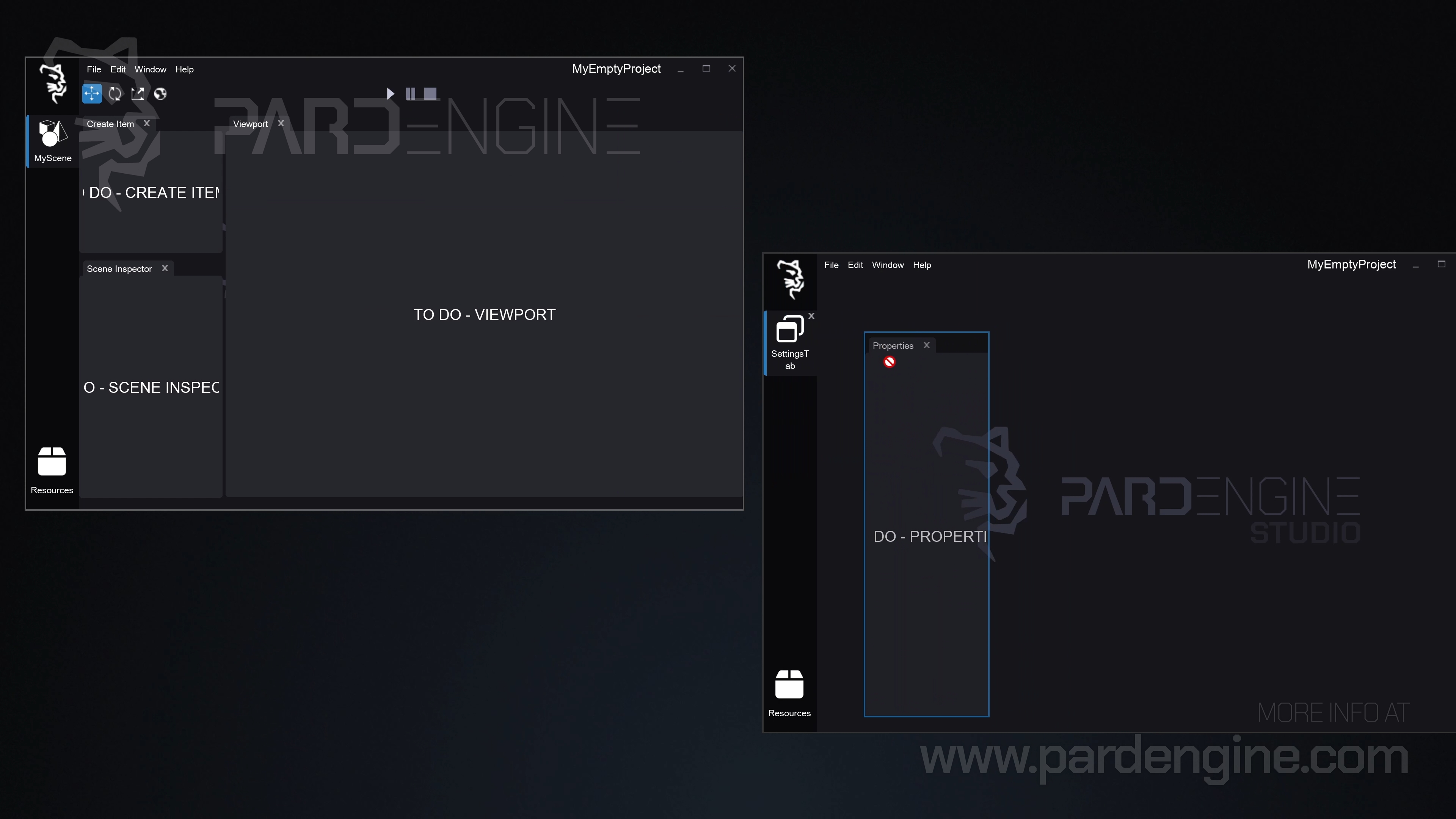
Figure 4: Editor panel ownership.
A panel can be docked/undocked only inside the area of its editor window, including its split windows. For example, a panel of the Scene Editor cannot be docked inside the GUI Editor and vice versa, like in Figure 4.
Layouts
Each time a panel is docked/undocked inside the area of its editor, under the hood, the layout data layer is updated, considering the positions, orientations, and size of each panel. This allows the user to save the current layout to be used across sessions. That means when the editor is closed and then reopened, the layout data is saved and then loaded, allowing the user to use the same layout from the previous session.
Since each editor is specific to a particular resource, a layout is saved and loaded for every resource, allowing the user to recover the last layout used for that specific resource.
What's next
The next time we will dive deeper into the Scene Inspector panel, where we will see how a scene resource is handled under the hood by Pard Engine, introducing concepts like Scenes and Layers and how these elements are shown in the inspector tree view.
Thank you for being part of the Pard Engine journey!
We’re closing in on our Alpha version release, and your interest fuels every line of code we write.
How you can help us grow:
Support us on Patreon: Every contribution powers our development, no matter the amount.
Patreon LinkJoin our Discord: Chat with devs, share ideas, and get early updates.
Discord LinkReady to spread the word?
Share this article anywhere you like using the buttons in the share bar.
We can’t wait to dive into the next devlog with you!